
Using Windows 64-bit Operating Systems to access the GPA Express System
The Windows 64-bit Operating Systems are not compatible with 32-bit Oracle Jinitiator client required to access the GPA Express System. To resolve this situation, users are to required to use the 32-bit version of Internet Explorer that is provided in the Windows installation.
- Access website http://terminalops3.gaports.com.
- Under the heading “Required Plugins”, download both the “Oracle Jinitiator 1.3.1.22” client and the “Java JRE 1.6.0_07 jvm.dll” file.
- Install the Jinitiator client by double-clicking on the JINIT13122.exe file that was downloaded in Step 2. No special configuration is required. Note that on the 64-bit Windows Operating System the Jinitiator client will install into the c:\Program Files(X86)\Oracle\Jinitiator 1.3.1.22\ folder.
- Replace c:\program files(X86)\oracle\jinitiator 1.3.1.22\bin\hotspot\jvm.dll with the jvm.dll downloaded in step 2.
- A 32-bit version of Internet Explorer can be found in the C:\Program Files(X86)\Internet Explorer\iexplore.exe. You may want to create a shortcut on the desktop for this version of the browser for future use.
- Using the 32-bit version of Internet Explorer, access website http://terminalops3.gaports.com and click on “Express System Main Entry Form”.
- When you access the Express system for the first time a ‘Jinitiator Security Warning’ popup window will appear. You must select the ‘Grant always’ option on the popup window to prevent it from appearing each time you enter the Express system.
- The new page may require a few seconds to load before the logon window is displayed. In the logon window enter the userid, password, and database as provided by GPA. After completing these steps the main screen for the GPA system will display.
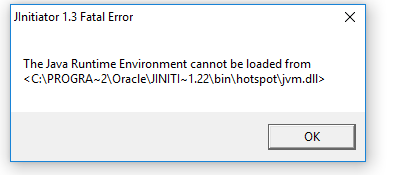
- If the error message above appears after clicking on "Express System Main Entry Form", Then download the MSVCR71.dll file under Required Plugins. After download is complete copy it to the c:\program files(X86)\oracle\jinitiator 1.3.1.22\bin directory. After completing this step click on the "Express System Main Entry Form" again.